This website uses Cookies. Click Accept to agree to our website's cookie use as described in our Privacy Policy. Click Preferences to customize your cookie settings.
Turn on suggestions
Auto-suggest helps you quickly narrow down your search results by suggesting possible matches as you type.
Showing results for
- Incorta Community
- Knowledge
- Data & Schemas Knowledgebase
- Using Databricks External Locations to Access Inco...
Options
- Subscribe to RSS Feed
- Mark as New
- Mark as Read
- Bookmark
- Subscribe
- Printer Friendly Page
- Report Inappropriate Content

.png "Employee") mariam_ayman
mariam_ayman
Employee
Options
- Article History
- Subscribe to RSS Feed
- Mark as New
- Mark as Read
- Bookmark
- Subscribe
- Printer Friendly Page
- Report Inappropriate Content
on 12-25-2025 07:53 AM
This guide explains how to create External Locations in Databricks to read schemas and tables directly from your Incorta cluster.
Overview
Databricks' external locations allow you to access your Incorta data stored in Azure Data Lake Storage Gen2 without copying or moving the data. This enables seamless integration between Incorta and Databricks workloads, allowing you to leverage both platforms' capabilities while maintaining a single source of truth for your data.
Prerequisites
Before you begin, ensure you have:
- A Databricks workspace with Unity Catalog enabled
- An Incorta instance deployed on Azure
- Azure administrator access with permissions to:
- Create an Access Connector for Azure Databricks
- Grant permissions on the Access Connector
- Grant permissions on the Storage Account
- Databricks account with privileges to create Storage Credentials and External Locations
Step-by-Step Instructions
Step 1: Create an Access Connector for Azure Databricks
The Access Connector is a managed identity that authenticates Databricks to access storage containers on behalf of Unity Catalog users.
Requirements:
- You must be a Contributor or Owner of the target Azure resource group
Instructions:
- In the Azure portal, navigate to Create a resource
- Search for "Access Connector for Azure Databricks"
- Click Create
- Configure the Access Connector:
- Resource Group: Select the same resource group where your storage account exists
- Region: Select the same region as your Databricks workspace
- Name: Provide a descriptive name (e.g., incorta-databricks-connector)
- Click Review + Create, then Create

Important Notes:
- The Access Connector must be in the same resource group as your storage account
- The Access Connector must be in the same region as your Databricks workspace
Verification: Once deployment completes, navigate to the resource and copy the Resource ID - you'll need this in Step 4.
Example format:
/subscriptions/{subscription-id}/resourceGroups/{resource-group}/providers/Microsoft.Databricks/accessConnectors/{connector-name}
Step 2: Grant Access on the Access Connector
Grant the Azure user who will configure Databricks the necessary permissions on the Access Connector.
Requirements:
- You must have permission to assign roles on the Access Connector
Instructions:
- Navigate to the Access Connector created in Step 1
- Select Access Control (IAM) from the left menu
- Click + Add → Add role assignment
- On the Role tab:
- Click Privileged administrator roles
- Select Privileged Role Administrator
- On the Members tab:
- Click + Select members
- Search for and select the Azure user who will configure the Databricks connection
- Click Review + assign
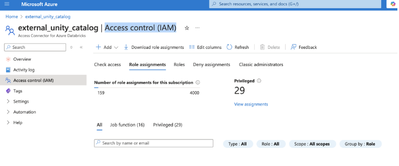

Verification: Under Access Control (IAM) → Role assignments, confirm the user appears with the Privileged Role Administrator role.
Step 3: Grant Access on the Storage Account
Grant the Access Connector permissions to read data from your Azure Storage Account.
Requirements:
- You must be an Owner or have the User Access Administrator Azure RBAC role on the storage account
Instructions:
- Navigate to the Storage Account that contains your Incorta data
- Select Access Control (IAM) from the left menu
- Click + Add → Add role assignment
- On the Role tab:
- Click Job function roles
- Select Storage Blob Data Contributor
- On the Members tab:
- Select Managed identity
- Click + Select members
- Filter by Access Connector for Azure Databricks
- Select the Access Connector created in Step 1
- Click Review + assign
Verification: Under Access Control (IAM) → Role assignments, confirm the Access Connector appears with the Storage Blob Data Contributor role.
Step 4: Create Storage Credential in Databricks
Create a Storage Credential in Databricks that references the Azure Access Connector.
Requirements:
- You must have CREATE STORAGE CREDENTIAL privilege in Databricks Unity Catalog
Instructions:
- Open your Databricks workspace
- Navigate to Catalog in the left sidebar
- Click + Add (top right)
- Select Add a storage credential
- Configure the credential:
- Name: Provide a descriptive name (e.g., incorta-storage-credential)
- Access Connector ID: Paste the Resource ID from Step 1
- Click Create
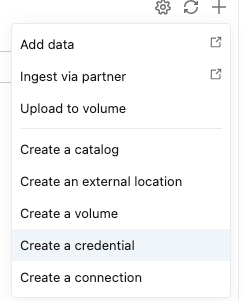

Verification: The storage credential should appear in your Catalog under Storage Credentials. Click on it to verify the Access Connector ID is correct.
Step 5: Create an External Location in Databricks
Create an External Location that points to your Incorta data in Azure Storage.
Requirements:
- You must have CREATE EXTERNAL LOCATION privilege in Databricks Unity Catalog
Instructions:
- In Databricks, navigate to Catalog
- Click + Add (top right)
- Select Add an external location
- Configure the external location:
- Name: Provide a descriptive name (e.g., incorta-tenant-data)
- Storage credential: Select the credential created in Step 4
- URL: Enter the path to your Incorta tenant data
- Click Create
URL Format:
abfss://<container_name>@<storage_account_name>.dfs.core.windows.net/Tenants/<tenant_name>/source
Verification: After creating the external location, Databricks will test the connection. A green checkmark indicates successful validation. If validation fails, verify:
- The URL format is correct
- The Access Connector has proper permissions
- The storage path exists
Step 6: Register Tables in Unity Catalog
Register Incorta tables in Databricks Unity Catalog to make them queryable.
Instructions:
- Open a Databricks Notebook
- Run the following SQL command to register a table:
CREATE TABLE catalog_name.schema_name.table_name
LOCATION 'abfss://<container_name>@<storage_account_name>.dfs.core.windows.net/Tenants/<tenant_name>/source/<incorta_schema_name>/<incorta_table_name>';
Verification:
Query the table to confirm it's accessible:
SELECT * FROM catalog_name.schema_name.table_name LIMIT 10;Working with the Registered Tables
Once your tables are registered, you can:
- Query them using SQL, Python, Scala, or R in Databricks notebooks
- Join Incorta tables with other data sources in your lakehouse
- Apply Databricks transformations and analytics
- Create views and derived tables
- Use them in dashboards and reports
Troubleshooting
Common Issues and Solutions
"Access Denied" Error When Querying
- Verify the Access Connector has Storage Blob Data Contributor role on the storage account
- Check that the external location URL is correct
- Ensure the storage path exists in Azure
"Storage Credential Not Found"
- Verify you created the storage credential in Step 4
- Ensure you have permissions to view storage credentials in Unity Catalog
- Confirm the Access Connector Resource ID is correct
"Path Does Not Exist"
- Double-check the URL format and path components
- Verify the Incorta schema and table names match exactly (case-sensitive)
- Confirm the Incorta data is stored in the expected location in Azure
"Cannot Create External Location"
- Ensure you have CREATE EXTERNAL LOCATION privilege
- Verify the storage credential is valid and accessible
- Check that Unity Catalog is enabled in your workspace
Labels: